Collections
Collections are sets of notebook records. A project can contain any number of collections, and each collection can also contain any number of collections. The collection hierarchy can be depicted in the form of a collection tree.
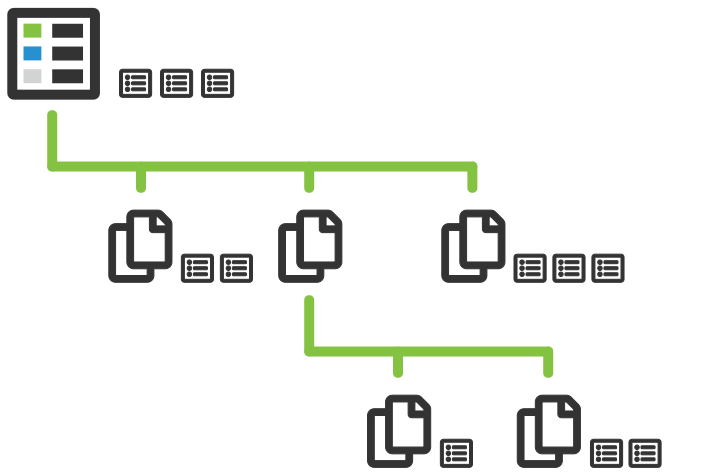
Records can be either assigned to a collection or placed directly under the project notebook. Records that are not assigned to a collection are labeled "unassigned" in their header.
Add new collection
Collections can be created by clicking the plus button on the Collections tab. The collection parent (project/other collection) is defined by your current position in the collection hierarchy. If you want to change the collection parent in the future, you can easily drag-and-drop the collection into the new parent collection.
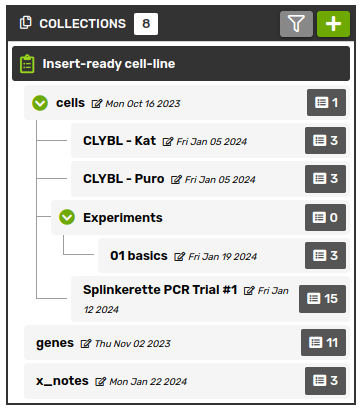
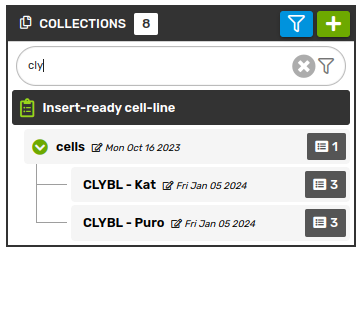
In the Collections tab, you can view the hierarchy tree or search for a specific collection by using the filter button.
Edit/Delete collection
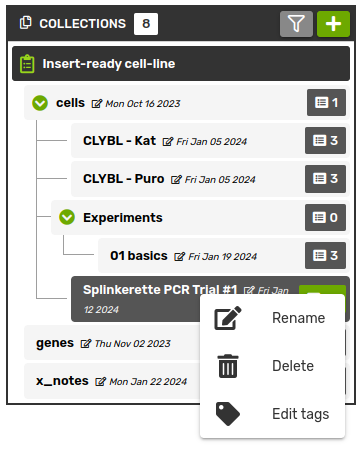
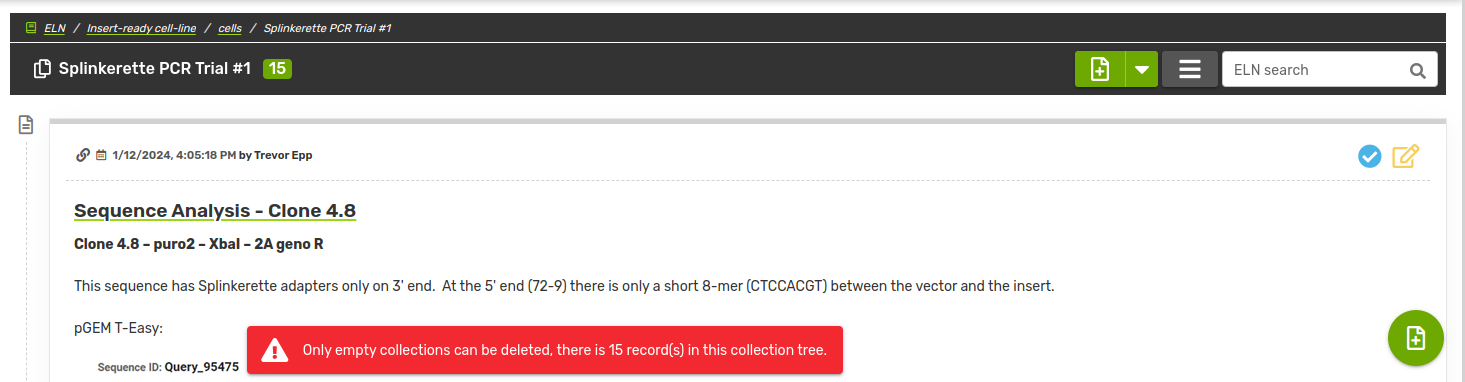
Collections can be renamed or even deleted (unlike notebook records) by right-clicking the collection in the hierarchy tree. However, only empty collections can be deleted, i.e. there cannot be any records inside the collection or in its child collections - such records have to be moved to a different location beforehand.
Sort collections
You can sort the collections in the tree based on your preferences. To do that, click with the right mouse button on the collection containing the sub-collections you want to sort. Alternatively, open the drop-down menu next to the Add new record button (green arrow), and click Sort collections. You can either drag and drop the collections or use the arrow buttons. These changes will be visible to all users.
